
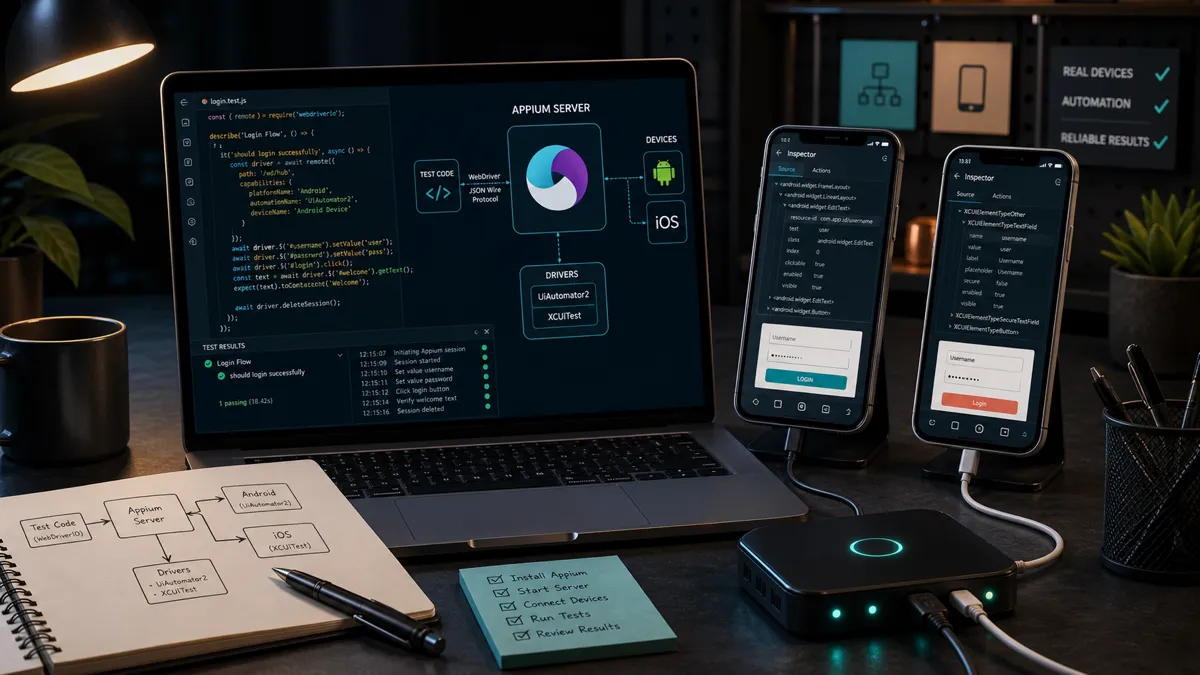
Appium shows up on almost every mobile QA job description, and it is also the tool people bounce off hardest. The first hour goes to fighting drivers, capabilities, and an emulator that will not boot, and plenty of people take that hour as proof that mobile automation is a separate, harder craft. It is the same craft. Once the setup is done, Appium is the automation skill you already have from the web, pointed at a phone: find an element, tap it, read its text, assert on what a user would see.
I drive Appium through WebdriverIO so I can keep web and native mobile in one framework and one language. Everything here applies whatever language you drive it from, but the examples are the setup I actually use.
How Appium actually works
There is no new language to learn here. Appium is a server that speaks the same W3C WebDriver protocol your browser tools already use, so your test sends the same “find this element, tap it, read its text” commands it would send to a browser. What changes is what sits on the other end.
Appium 3 has been the current major version since August 2025. Ever since Appium 2, the platform drivers are installed separately from the server, and that separate install is the part that trips people up. A few things worth knowing before you start:
- It is W3C-only. The old JSON Wire Protocol is gone.
- It needs Node 20.19 or newer (on the 22 line, that means 22.12 or newer).
- Appium Inspector runs as a server plugin you install with
appium plugin install inspectorand switch on by starting the server withappium --use-plugins=inspector, so you can hunt for locators from the server at/inspectorinstead of a separate desktop app.
Android automation runs through the UiAutomator2 driver and iOS through the XCUITest driver. You install each one once:
npm install -g appium
appium driver install uiautomator2
appium driver install xcuitest
appium plugin install inspector   # optional: locator inspector at /inspector
appium driver doctor uiautomator2   # checks your Android SDK / JAVA_HOME are set up
That doctor command is the step that saves you a lost afternoon. It tells you exactly which environment variable or SDK path is missing before you waste an hour blaming your test.
A real test you can read
You point Appium at a device and an app with a capabilities object, then write the test against it. Here is the capabilities block for a real Android device, the kind of thing that lives in your wdio.conf.js:
capabilities: [{
  platformName: 'Android',
  'appium:automationName': 'UiAutomator2',
  'appium:deviceName': 'Galaxy S23',
  'appium:udid': 'R5CT30...',          // a real device serial from `adb devices`
  'appium:app': '/builds/app-release.apk', // the release artifact you intend to ship
  'appium:appWaitActivity': '*',
}]
Point it at the release build, not a debug build, for the same reason the real-device checklist keeps coming back to it: the binary that ships is the one you have to trust. With that in place, the test reads almost exactly like a web test:
describe('checkout', () => {
  it('applies a valid promo and shows the discounted total', async () => {
    // ~ means "accessibility id", the one locator that works the same on iOS and Android
    await $('~cart-button').click();
    await $('~promo-input').setValue('IRIE10');
    await $('~apply-promo').click();
    await expect($('~cart-total')).toHaveText('$53.98');
  });
});
If you have written a browser test, you have written this. The shape is identical: find an element, act on it, assert on the outcome a user actually cares about. All of the mobile-specific judgement sits in that ~ prefix, and that is where most of the reliability is won or lost.
Find elements that survive a redesign
Everything I have written about locator strategy applies here, just with mobile names. The rule does not change: target what an element is, not where it sits or how it is styled. On mobile the most stable target is the accessibility id. It is one value that maps to contentDescription on Android and accessibilityIdentifier on iOS, your developers set it deliberately, and on Android it does double duty as the label a screen reader reads out. Ask for it the way you would ask for a test id on the web.
| What you are after | Use | Cross-platform | Stable | Fast | Why it holds up |
|---|---|---|---|---|---|
| One locator for both platforms | accessibility id (~id) | ✓ | ✓ | ✓ | Set by devs, survives a restyle, doubles as a screen-reader label on Android |
| An Android-only element | resource-id | ✗ | ✓ | ✓ | The app’s own stable id, fast and reliable on Android |
| An iOS-only element | -ios predicate string or class chain | ✗ | ✓ | ✓ | Native iOS queries, far faster than the alternative |
| Anything, in a hurry | ~ | ✗ | ✗ | Slow on a device, and it shatters the moment the layout shifts |
XPath is the mobile version of a long nth-child CSS chain. It works in the demo and falls apart in the suite, because it is slow on a real device and breaks the moment the layout shifts. If an element has no accessibility id, do not reach for a cleverer XPath. Ask the developer to add the id in a one-line pull request. That is the same conversation that makes the app more accessible, so it is an easy one to win.
Run it on a real device, not just the emulator
An Appium test that only ever runs on an emulator is a hypothesis, not a result. The emulator borrows your laptop’s power and graphics, so performance, gestures, and the long tail of manufacturer quirks all come out best-case. The real-device checklist makes that case in full, so I will not repeat it here. The point for automation is simple: the value of an Appium suite shows up on hardware.
You do not need a drawer of phones to get there. Run locally against one or two real devices for fast feedback, and rent the breadth from a device cloud for everything else. BrowserStack and Sauce Labs are the two that show up most in job descriptions, with AWS Device Farm close behind. They run your existing Appium suite across a matrix of real phones in the cloud, so a green build means it passed on devices rather than on your machine. Wiring that into continuous integration is the difference between a suite people trust and a script that runs when someone remembers.
Cross-platform or native: when to leave Appium
Appium’s whole pitch is one suite, one language, both platforms. That is genuinely valuable, and for most teams it is the right default. It is also a layer of indirection, and indirection costs you some speed and the occasional flake. When a team’s mobile testing gets serious enough that the suite’s own reliability becomes the bottleneck, the native frameworks start earning their second codebase.
| If you need | Reach for | iOS | Android | One suite | The trade-off |
|---|---|---|---|---|---|
| One suite for iOS and Android, in your language | Appium, often with WebdriverIO | ✓ | ✓ | ✓ | Slower than native and occasionally flakier, but half the maintenance |
| The fastest, most stable Android tests | Espresso (Kotlin or Java) | ✗ | ✓ | ✗ | Android only, in-process, so it is a second suite to own |
| The fastest, most stable iOS tests | XCUITest (Swift) | ✓ | ✗ | ✗ | iOS only, a second suite again |
The honest version: most teams should start with Appium and only pick up a native framework for the platform where flakiness or speed is actively hurting them. You will also see Maestro recommended as a lighter, mobile-only option. It is genuinely pleasant to write, but it still shows up far more in blog posts than in the job descriptions you are likely hiring against, so I would learn Appium first and treat Maestro as a bonus.
Where AI helps, and where it does not
An agent is good at the parts of Appium work that are reading and drafting. Hand it a failing run with the Appium server logs and it will cluster the errors and point at the likely cause faster than you can scroll. Ask it to draft the first version of a test or a page object from a flow you describe, and it gives you a real starting point. There is even an Appium MCP server now that lets an agent explore a running app and propose test code. Treat it as a drafting aid you still check.
What does not change is where the run happens and who judges it. An agent can inspect the screenshot and flag a likely visual problem, but it cannot feel the touch or own the release decision. That gap is at its widest on exactly this kind of work. I make the full case in AI visual testing. So let it draft the test and read the logs; you run it on the real device and make the call.
Where to start
If you are standing this up from nothing, this is the order that gets you to a passing test on a real phone without the usual thrash:
- Install Appium 3 and the drivers you need, then run
appium driver doctorfor each driver and fix what it flags before writing a line of test code. - Get one real device talking to your machine.
adb devicesfor Android, a connected iPhone or simulator for iOS. Confirm it shows up before you involve Appium. - Point capabilities at the release artifact, the build you actually intend to ship, on that device.
- Ask for accessibility ids on the handful of elements your first test touches. It is one small pull request and it pays off forever.
- Write a single end-to-end test for the journey that pays the bills, and get it green on the real device.
- Move the breadth to a device cloud and wire it into CI, so it runs on every change, not on request.
Get that far and you have what the job descriptions are really asking for: a mobile suite that runs on real hardware and that the team trusts. The framework was never the hard part. Stable locators, real devices, and a suite someone actually owns are, and they are the same skills that make any automation worth having. For the wider picture of what else to test on a phone, the real-device checklist and the lifecycle and interrupt guide pick up where this leaves off.

Written by
Julia Pottinger
Hi, I'm Julia. I've been in QA for over a decade. I spend my days testing software and my own time building apps and games, and I write here to share what I learn, the practical, honest lessons you can actually use.


Comments 0
Share your thoughts, ask questions, or add to the conversation.