
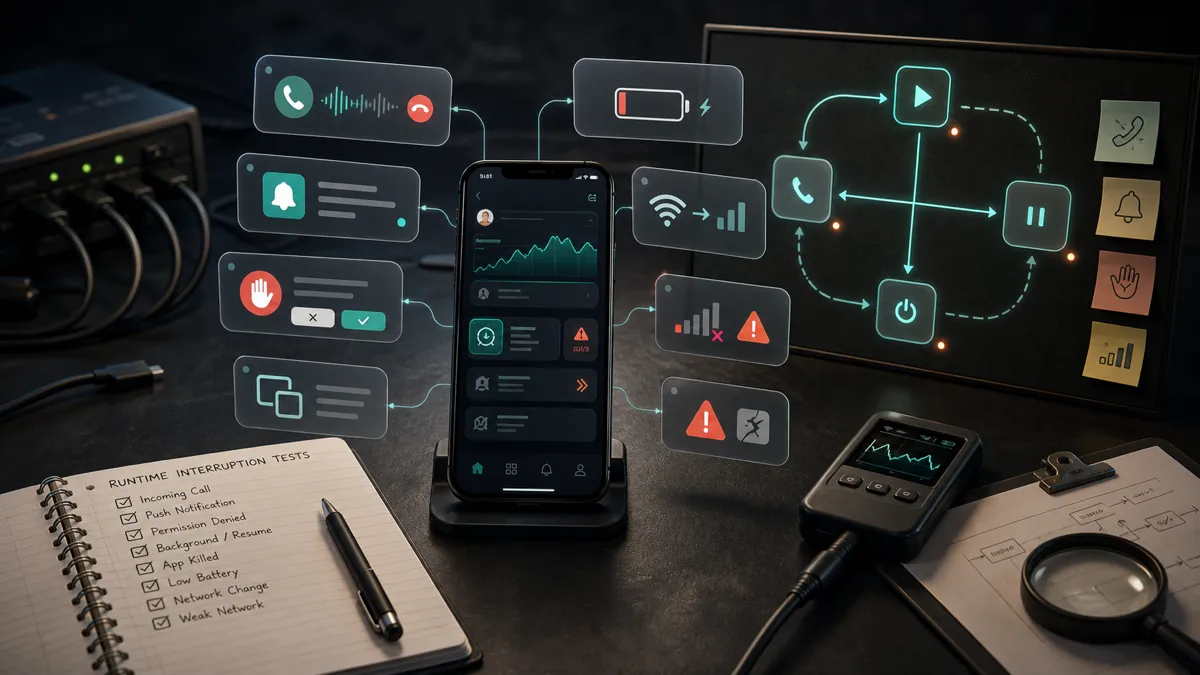
I build a mobile game, and testing my own work taught me to be unkind to it. I start a run, send the app to the background, and pile on other apps until the phone kills it to reclaim memory. Then I open it again and see what came back. On a real phone, in a real hand, that kill happens whether I plan for it or not, so I would rather force it at my desk than hear about it from a player.
That habit comes from a decade of testing other people’s apps too, and it is the same lesson every time. A mobile app is rarely allowed to run from start to finish in peace. The operating system suspends it, a phone call pulls the user away, the system kills it to reclaim memory, the network drops as they walk into a lift, and they deny the one permission the feature depends on. Every one of those is a transition, and transitions are where mobile state quietly breaks: the cart that vanishes, the draft that is lost, the login that does not survive a cold relaunch.
These are the bugs that pass every check on your desk and then fill your reviews, because none of them happen on a simulator with endless memory and a stable connection. They happen on a real phone, on a real Tuesday. So this is about the runtime conditions: the lifecycle, the interruptions, the permission paths, and the bad networks. The hardware side, the device matrix, the tooling, and why real devices are non-negotiable in the first place, lives in Mobile App Testing: Real-Device Checklist for QA.
Test the lifecycle, because the app is always being interrupted
Coming from web testing, this is the part that surprised me most, and it is where I have watched the most embarrassing mobile bugs hide. The operating system is not a passive host. It suspends your app, the user leaves and comes back, a notification pulls them away, the system kills the app to reclaim memory, and an update swaps the whole binary out from under stored data. Every one of those transitions is a place where state can be lost or corrupted.
On Android in particular, the system reclaims memory by killing backgrounded apps. Google’s process lifecycle documentation is blunt about it: cached processes are killed freely under memory pressure, and onDestroy is not guaranteed to run when that happens.
So the question is not whether your app gets killed in the background. It will. The question is whether it restores cleanly when the user taps back in. A simulator with endless memory rarely forces that. A real mid-range phone with a dozen other apps open forces it constantly.
Here is how the common transitions fit together, and where they tend to break:
The checks I run on every app, adjusted for the specific product:
- Fresh install on a device that has never had the app
- Upgrade from the previous released version, with real data already present
- Logout and login, including switching accounts
- Background and return, both quickly and after a long delay
- Cold relaunch after killing the app from the recents switcher
- Session and token expiry while the app is backgrounded
- Deep links that open a specific screen from cold and from running states
- Notification tap that routes to the right place
- No network at launch, then recovery when it returns
- Screen rotation at every step, if the app supports it
What a real user does to your app
That list sounds abstract until you put it next to what a real user actually does, usually without meaning to. Here is the kind of session that breaks things, and none of it is exotic. It is a Tuesday.
A user is halfway through checkout when a phone call comes in. They take it, talk for two minutes, hang up, and tap back in. Is the cart still there, or did the call tear down the activity and drop them on the home screen with an empty basket? A few minutes later the screen auto-locks while a payment is processing. When they unlock, did the app finish the transaction, double-charge, or leave a spinner that never resolves?
They get a push notification, tap it, and land on the wrong screen because the deep link assumed they were already logged in. They walk out of the building and the phone hands off from Wi-Fi to mobile data mid-request. They deny the camera permission on the upload screen, change their mind, and now the app is stuck because nobody tested the “permission denied, then granted later” path. They tap into a field near the bottom of the form and the keyboard slides up and covers the submit button, so there is no way to finish.
I have found or watched ship almost every bug on that list, across payments apps, retail apps, and my own game. Not one of them shows up cleanly in a simulator on a desk with a stable connection and a full battery.
| Real-world condition | What it tends to break | Why the simulator misses it |
|---|---|---|
| Incoming call or alarm mid-flow | In-progress transactions, unsaved form state | No real telephony interrupting the process |
| Screen auto-locks during a task | Payment confirmation, long uploads, timers | The simulator does not idle-lock like a phone does |
| Push notification deep link | Routing when the user is not in the assumed state | Tapped from a cold or backgrounded app, not a warm one |
| Wi-Fi to mobile data handoff | Active requests, sockets, downloads | The desktop network never silently switches underneath you |
| Weak or intermittent signal | Timeouts, retries, partial loads | Emulator network is fast and stable by default |
| Low battery and OS throttling | Background sync, animations, scheduled work | The laptop is plugged in and never throttles |
| Permission denied then granted | Camera, location, notification, contacts flows | Permission dialogs differ per OS and per manufacturer skin |
| Keyboard covering a field or button | Forms, login, anything near the bottom edge | The simulated keyboard does not occlude the way a real one does |
The fastest way I find these bugs is to combine them into one nasty flow instead of testing each in isolation. The interesting failures live at the seams:
Checkout flow, lifecycle stress pass:
- Add item to cart, kill the app from recents, reopen cold. Cart still there?
- Start checkout, background the app for five minutes, return. Still on the right step?
- Reach the payment screen, drop the network, recover. No double charge, clear retry?
- Tap "Pay", immediately get a push notification, return to the app. State intact?
- Upgrade to a new app version with a cart already populated. Data migrated cleanly?
These are exactly the moments users hit within their first week, and they are the ones that turn into refund requests and uninstalls.
Force the bad state, do not wait for it
The worst lifecycle bug, the operating system killing your app in the background, is also the hardest to trigger on purpose. You can open a dozen apps and hope memory pressure does the work, but that is slow and unreliable. This is where I stopped waiting and started forcing. On Android the tool for it sits in a screen most testers walk past: Developer options. I treat it as a control panel for manufacturing, on demand, the conditions a real phone produces by accident.
Three toggles in there do most of the work:
- Don’t keep activities. Destroys every screen the moment you leave it, which is exactly what the system does under memory pressure, except on demand, every single time. Turn it on, send the app to the background mid-flow, come back, and watch whether your state restores or the user lands on a blank screen with an empty cart. This is the setting I reach for first.
- Background process limit. Set it to “no background processes” or a low number to starve the app of memory and surface the same class of bug from the other direction.
- Select mock location app. Points Developer options at a fake-GPS app of your choice so you can test geofencing and location flows without leaving your desk. Unset it afterwards to confirm the app falls back to network or Wi-Fi location instead of freezing.
Turn on Don’t keep activities and leave it on for a full QA pass. If your app survives that, it will survive the real memory kill in a user’s hand.
There is no identical switch on iOS, but you do not need one. Terminate the app from the multitasking switcher and relaunch cold, and you force the same restore-from-nothing path. The point on both platforms is the same: do not hope the bad state shows up, make it show up so the bug has nowhere to hide.
Test permissions the way real people answer them
Permissions are one of the largest sources of mobile quality risk, and the reason is simple. Most testing only covers the path where the user taps “Allow” on everything. Real users do not do that. They deny location to a shopping app, they revoke camera access months later in Settings, and they tap “Don’t Allow” on notifications the first time they are asked. Your app has to stay useful, and stay standing, through all of it.
For every permission your app requests, I walk the full set of states:
- Granted, the happy path
- Denied at the prompt
- Denied permanently, where the OS stops asking and the user must go to Settings
- Granted then revoked later in system Settings
- Triggered before the request, where the feature runs before the permission was ever asked for
- Explained first, where in-app copy says why the permission is needed before the system prompt appears
- No permission available, and the fallback that follows
A few examples of what “graceful” looks like in practice:
- A photo feature should explain, on your own screen, why it needs the camera before the system dialog ever appears. People grant permissions they understand and deny the ones that feel like a grab.
- A store locator should still show useful content when location is denied, falling back to a manual search instead of a dead screen.
- A notification prompt should never fire on first launch, before the user has any reason to say yes. Ask after they have felt the value.
The denied-permanently case is the one I see teams forget most, and it is the worst one to get wrong. The app cannot re-prompt, and a naive flow leaves the user stuck with no way forward.
Test bad networks, not just your office Wi-Fi
Mobile users are on the move, so their connection is not the clean fibre line at your desk. They are in elevators, on the underground, in a stadium with sixty thousand people sharing one cell tower. If your app only works on a fast, stable connection, it does not really work.
Put the app through the conditions it will actually meet:
- Fully offline, including a cold start with no network
- Slow and high-latency, where requests take seconds, not milliseconds
- A live Wi-Fi-to-cellular switch mid-request
- Timeouts, and how the app recovers from them
- Retry behaviour, and whether it backs off sensibly instead of hammering the server
- Duplicate-submit prevention on any action that costs money or creates data
- Cached data, shown clearly as cached rather than current
- An interrupted upload, resumed or restarted cleanly
The classic mobile bug lives right here. A user taps “Pay”, the app does not show a loading state quickly enough, so they tap again, and now there are two charges. What looked like a minor UI delay is a billing incident and a chargeback. Every action that creates or changes data needs an immediate visual response and a guard against the double tap.
You do not need exotic equipment to find these. A debugging proxy like Charles Proxy or Proxyman sits between the app and the network, so you can throttle the connection to a slow profile and watch the exact calls the app makes while it struggles. That is usually how I discover one screen quietly firing twenty requests. Network Link Conditioner on iOS and the throttling profiles in Android’s emulator reproduce poor connections on demand too.
Where this fits
None of this needs exotic equipment. It needs a real device, a little deliberate cruelty, and the discipline to combine the interruptions into one nasty flow instead of testing each in isolation.
It is also the work an AI agent cannot do for you. It can draft the interrupt checklist, but it cannot feel the call tear down your checkout, watch the keyboard swallow the submit button, or judge whether the app came back in one piece. That is the part I keep running into with my own game: the machine is good at the contract and the data, and I am still the one who has to look at a real screen and say “that is not right.” On mobile, the human has to do the looking.
Test the app the way the world treats it, not the way your desk does, and you stop shipping the bugs that only ever show up after someone has lived with it for a week. The device matrix, the tooling, the performance numbers, and the real-device smoke suite that folds these interruptions into one ordered run all live in Mobile App Testing: Real-Device Checklist for QA. And when money is involved, the lifecycle thinking goes deeper still, because a purchase has to survive a background, a kill, and a cold relaunch with the entitlement intact.

Written by
Julia Pottinger
Hi, I'm Julia. I've been in QA for over a decade. I spend my days testing software and my own time building apps and games, and I write here to share what I learn, the practical, honest lessons you can actually use.

Comments 0
Share your thoughts, ask questions, or add to the conversation.